
git cheat sheet
Git Cheat Sheet is a comprehensive quick guide for learning Git concepts, from very basic to advanced levels. By this Git Cheat Sheet, our aim is to provide a handy reference tool for both beginners and experienced developers/DevOps engineers. This Git Cheat Sheet not only makes it easier for newcomers to get started but also serves as a refresher for experienced professionals.
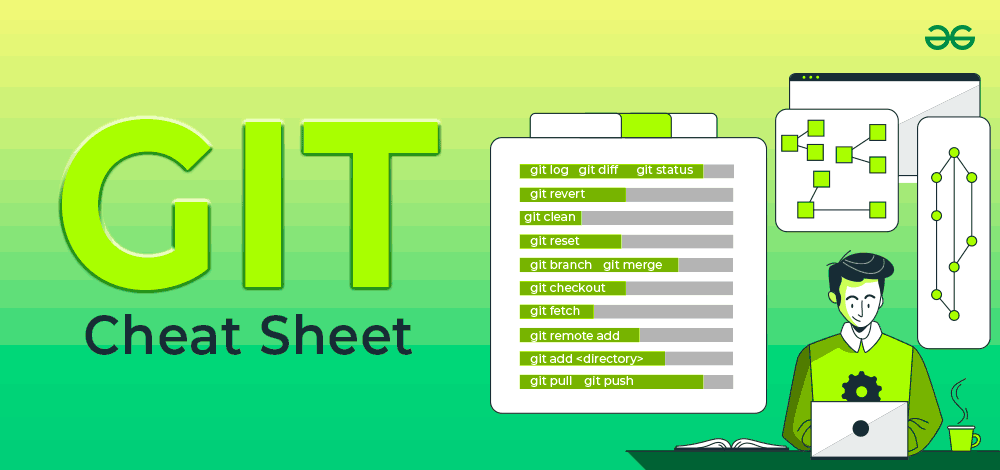
In this Git Cheat Sheet, we’ve covered all the basics to advanced Git commands that the developers required during the development and deployment process. Moreover, it is well-structured and categorized according to different use cases. It includes Git and GitHub, Git download, Git Configuration & Setup, Git commands, Git bash, Creating and Getting Git Projects, Git Snapshots, Branching and Merging in Git, Sharing and Updating in Git, Git Comparison, Managing History in Git, and more.
What is Git?
Git is the free and open-source distributed version control systems that's responsible for everything GitHub related that happens locally on your computer.
Understanding Version Control
Version control, also known as source control, is the technique of tracking and managing changes to codes and these are the systems that are software tools that enable software teams to manage modifications to source code as time passes.
What is GitHub?
GitHub is a widely-used Free-to-use cloud Storage platform with version control and many other essential features that specifically helps developers to manage and deploy their projects on GitHub.
Benefits of Using Git
History Tracking: Git allows you to track every change made in your project, including: who made the change and when it was made.
Collaboration: Multiple developers can be able work on the same project at the same time, and Git efficiently manages the merging of changes in code.
Branching and Merging: Git enables developers to create branches to work on new features or bug fixes and later merge them back into the main codebase.
Offline Work: Git works offline, which means you can commit changes and work on your project even without an internet connection.
Git Installation Commands
Here are the Git installation commands for different operating systems:
Git for Windows stand-alone installer.
For more Details Read Here
$ brew install git
Install Git with Homebrew on Mac OS
$ sudo port selfupdate
Install Git with MacPorts on Mac OS
$ sudo apt-get install git
Install Command for Linux
$ git --version
Shows the current version of your Git
Git Configuration & Setup
Here are Git configuration and setup commands:
git config --global user.name "Your Name"
Set your username globally.
git config --global user.email "[email protected]"
Set your email globally.
git config --global color.ui auto -
Set to display colored output in the terminal
git help
Display the main help documentation, showing a list of commonly used Git commands.
Initializing a Repository
Here are the Git initializing a repository commands:
git init
Initializes a new Git repository in the current directory.
git init
Creates a new Git repository in the specified directory.
git clone <repository_url>
this Clones a repository from a remote server to your local machine.
git clone --branch <branch_name> <repository_url>
Clones a specific branch from a repository.
Basic Git Commands
Here are some basic Git commands:
git add
Adds a specific file to the staging area.
git add . or git add --all
Adds all modified and new files to the staging area.
git status
Shows the current state of your repository, including tracked and untracked files, modified files, and branch information.
git status --ignored
Displays ignored files in addition to the regular status output.
git diff
Shows the changes between the working directory and the staging area (index).
git diff
Displays the differences between two commits.
git diff --staged or git diff --cached
Displays the changes between the staging area (index) and the last commit.
git diff HEAD
Display the difference between the current directory and the last commit
git commit
Creates a new commit with the changes in the staging area and opens the default text editor for adding a commit message.
git commit -m "" or git commit --message ""
Creates a new commit with the changes in the staging area and specifies the commit message inline.
git commit -a or git commit --all
Commits all modified and deleted files in the repository without explicitly using git add to stage the changes.
git notes add
Creates a new note and associates it with an object (commit, tag, etc.).
git restore
Restores the file in the working directory to its state in the last commit.
git reset
Moves the branch pointer to a specified commit, resetting the staging area and the working directory to match the specified commit.
git reset --soft
Moves the branch pointer to a specified commit, preserving the changes in the staging area and the working directory.
git reset --hard
Moves the branch pointer to a specified commit, discarding all changes in the staging area and the working directory, effectively resetting the repository to the specified commit.
git rm
Removes a file from both the working directory and the repository, staging the deletion.
git mv
Moves or renames a file or directory in your Git repository.
Also, check: Basic Git Commands with Examples
Git Commit (Updated Commands)
Here are some of the updated commands for Git commit:
git commit -m "feat: message"
Create a new commit in a Git repository with a specific message to indicate a new feature commit in the repository.
git commit -m "fix: message"
Create a new commit in a Git repository with a specific message to fix the bugs in codebases
git commit -m "chore: message"
Create a new commit in a Git repository with a specific message to show routine tasks or maintenance.
git commit -m "refactor: message"
Create a new commit in a Git repository with a specific message to change the code base and improve the structure.
git commit -m "docs: message"
Create a new commit in a Git repository with a specific message to change the documentation.
git commit -m "style: message"
Create a new commit in a Git repository with a specific message to change the styling and formatting of the codebase.
git commit -m "test: message"
Create a new commit in a Git repository with a specific message to indicate test-related changes.
git commit -m "perf: message"
Create a new commit in a Git repository with a specific message to indicate performance-related changes.
git commit -m "ci: message"
Create a new commit in a Git repository with a specific message to indicate the continuous integration (CI) system-related changes.
git commit -m "build: message"
Create a new commit in a Git repository with a specific message to indicate the changes related to the build process.
git commit -m "revert: message"
Create a new commit in a Git repository with a specific message to indicate the changes related to revert a previous commit.
Branching and Merging
Here are some Git branching and merging commands:
git branch
Lists all branches in the repository.
git branch
Creates a new branch with the specified name.
git branch -d
Deletes the specified branch.
git branch -a
Lists all local and remote branches.
git branch -r
Lists all remote branches.
git checkout
Switches to the specified branch.
git checkout -b
Creates a new branch and switches to it.
git checkout --
Discards changes made to the specified file and revert it to the version in the last commit.
git merge
Merges the specified branch into the current branch.
git log
Displays the commit history of the current branch.
git log <branch-d
Displays the commit history of the specified branch.
git log --follow
Displays the commit history of a file, including its renames.
git log --all
Displays the commit history of all branches.
git stash
Stashes the changes in the working directory, allowing you to switch to a different branch or commit without committing the changes.
git stash list
Lists all stashes in the repository.
git stash pop
Applies and removes the most recent stash from the stash list.
git stash drop
Removes the most recent stash from the stash list.
git tag
Lists all tags in the repository.
git tag
Creates a lightweight tag at the current commit.
git tag
Creates a lightweight tag at the specified commit.
git tag -a -m ""
Creates an annotated tag at the current commit with a custom message.
Remote Repositories
Here are some Git remote repositories commands:
git fetch
Retrieves change from a remote repository, including new branches and commit.
git fetch
Retrieves change from the specified remote repository.
git fetch --prune
Removes any remote-tracking branches that no longer exist on the remote repository.
git pull
Fetches changes from the remote repository and merges them into the current branch.
git pull
Fetches changes from the specified remote repository and merges them into the current branch.
git pull --rebase
Fetches changes from the remote repository and rebases the current branch onto the updated branch.
git push
Pushes local commits to the remote repository.
git push
Pushes local commits to the specified remote repository.
git push
Pushes local commits to the specified branch of the remote repository.
git push --all
Pushes all branches to the remote repository.
git remote
Lists all remote repositories.
git remote add
Adds a new remote repository with the specified name and URL.
Git Comparison
Here are some Git comparison commands:
git show
Shows the details of a specific commit, including its changes.
git show
Shows the details of the specified commit, including its changes.
Git Managing History
Here are some Git managing history commands:
git revert
Creates a new commit that undoes the changes introduced by the specified commit.
git revert --no-commit
Undoes the changes introduced by the specified commit, but does not create a new commit.
git rebase
Reapplies commits on the current branch onto the tip of the specified branch.
Why use Git?
Here are some of the reasons why you might want to use Git:
Track changes to your code
Collaborate on projects with others
Maintain an organized code history
Easily revert to previous versions when needed
Release your code efficiently and manage versions
Enhance productivity and code integrity in software development.